If you run job costing in Procore and accounting in QuickBooks Online, the cost code mapping between the two systems is the single most important setup decision you'll make. Get it right and every bill lands in QuickBooks already coded. Get it wrong and you'll spend hours untangling a bloated item list, or worse, your project budgets and your books will tell two different stories.
The good news: the right setup is simpler than most contractors expect. Procore's work breakdown structure (WBS) has three dimensions, but you don't need to recreate all three in QuickBooks. Here's how we recommend mapping them, and why.
Understanding Procore's work breakdown structure
Procore organizes project costs along up to three dimensions:
- Cost code. The base of the structure: what the work is. For example, 03-300 Cast-in-Place Concrete or 09-250 Gypsum Board.
- Cost type. The kind of cost within that code, such as Labor, Material, Subcontract, Equipment, or Other.
- Sub job. An optional extra layer that can represent phases, buildings, floors, areas, or any other custom structure your team uses to slice a project.
Together, these let you see exactly where money is going on a job: concrete subcontract costs in Phase 2, for example. That level of detail is powerful for project managers. The question is how much of it needs to live in your accounting system.
The common mistake: building every combination in QuickBooks
QuickBooks Online doesn't have a native three-level WBS, so many teams try to force one. They create a separate product or service item for every cost code and cost type combination, and sometimes for every cost code, cost type, and sub job combination.
The math gets out of hand fast. Fifty cost codes across five cost types is 250 items. Add ten phases and you're at 2,500. Every new code or phase multiplies the list again, and every one of those items has to be created, maintained, and mapped. Reports become harder to read, not easier, and a single missing combination can stop a bill from syncing.
You don't need any of that.
The recommended mapping
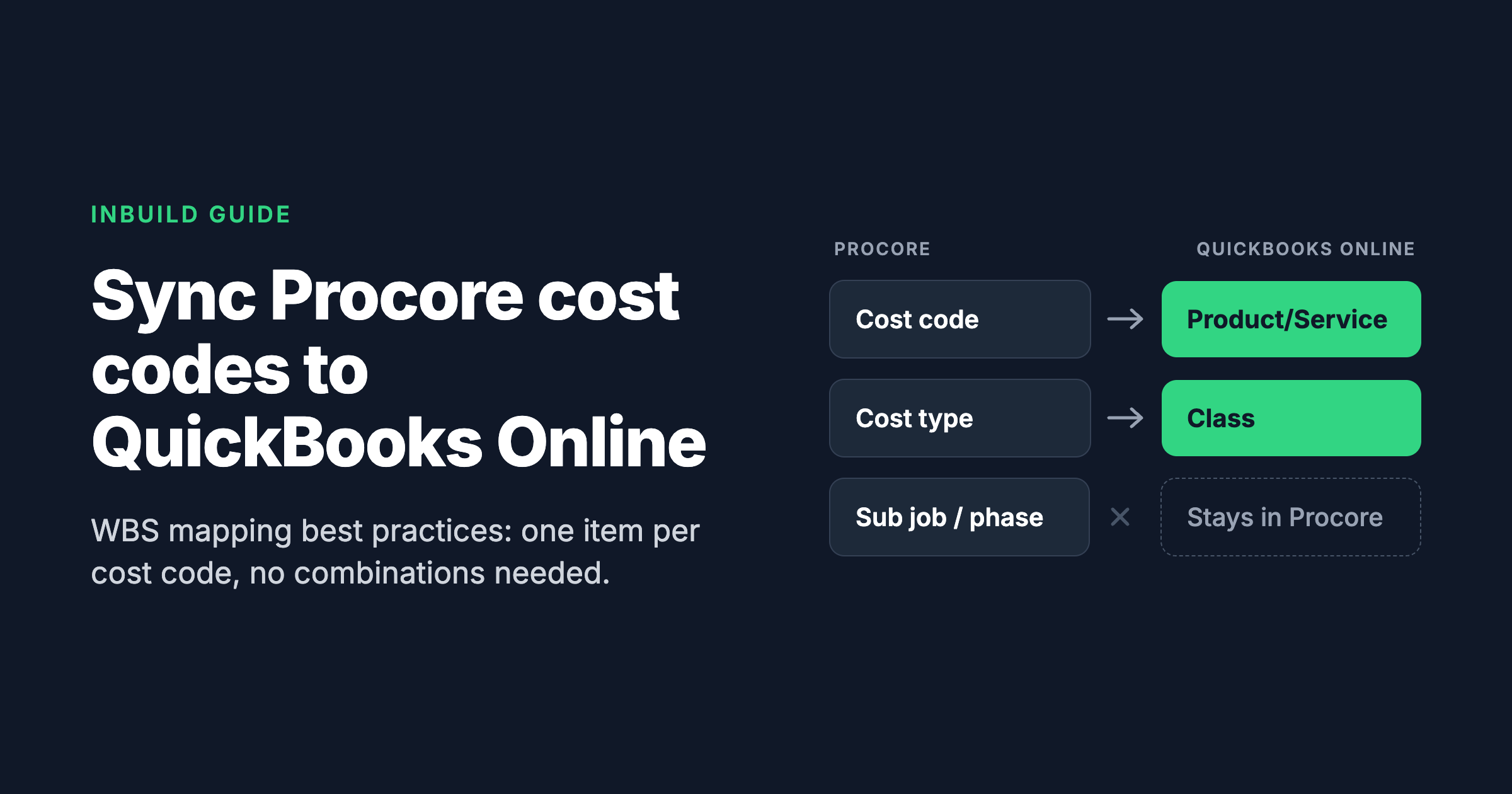
The cleanest way to connect Procore and QuickBooks Online is to anchor everything on the cost code, and give each remaining dimension the home that fits it best:
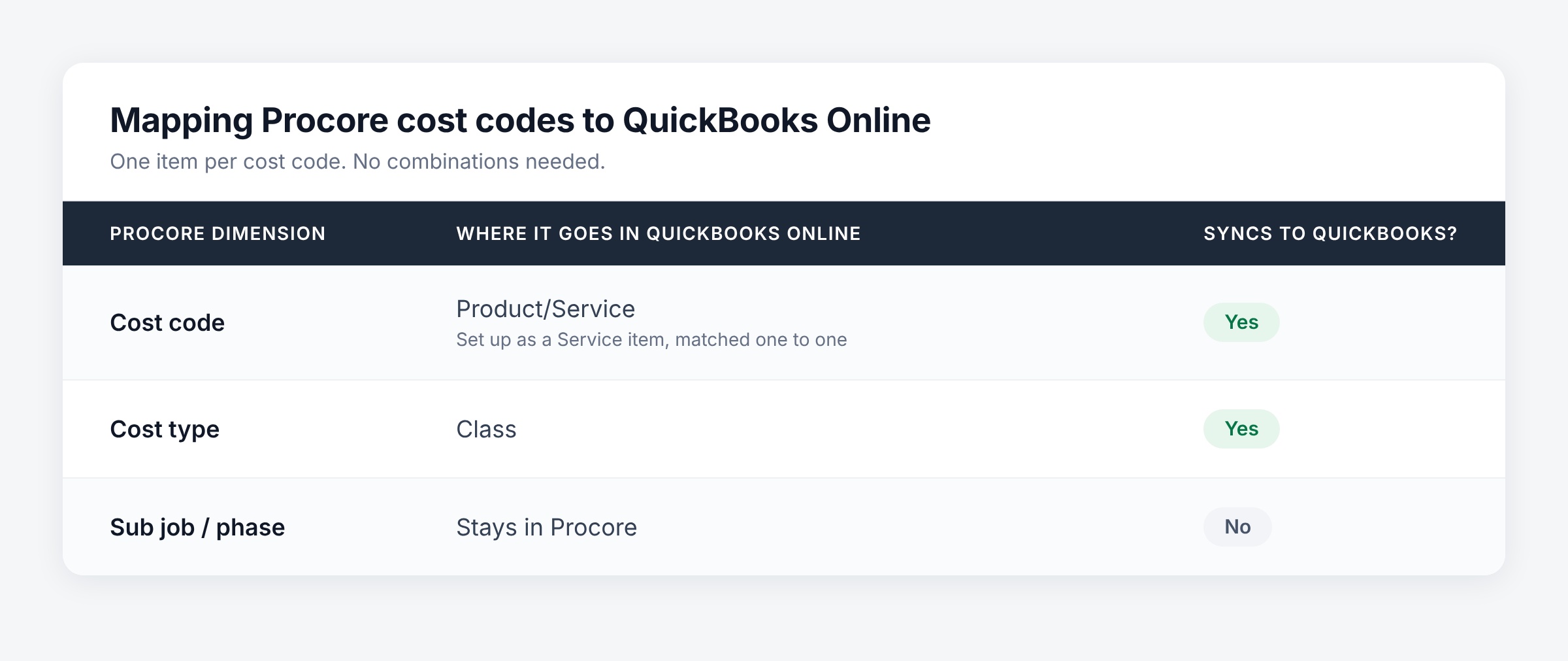
Cost codes map one to one to Products and Services. Set up each of your cost codes in QuickBooks Online as a Service item, so that your QuickBooks item list mirrors your Procore cost code list exactly. One cost code, one item. No combinations.
Cost types map to Classes. Instead of multiplying items, use QuickBooks Online classes to carry the cost type. A short class list (Labor, Material, Subcontract, Equipment, Other) covers every cost code on every job.
Sub jobs and phases stay in Procore. They are a reporting dimension for your project team, and Procore already handles them well. There's no need to add them to QuickBooks Online.
How to set it up in inBuild
- Create your cost codes in QuickBooks Online. Add each cost code as a Service item under Products and Services. Use the same code numbers and names you use in Procore so the match is obvious.
- Create a class for each cost type. Turn on class tracking in QuickBooks Online if it isn't already on, then add one class per Procore cost type.
- Map your cost codes in inBuild. inBuild matches your Procore cost codes to your QuickBooks Online products and services one to one. The mapping works regardless of cost type and sub job, so a single mapping per cost code covers every variation of that code in Procore.
- Map your cost types to classes. In inBuild, map each Procore cost type to its matching QuickBooks Online class.
- Sync a test bill. Push one bill through and confirm the product/service and class landed where you expect before you turn on regular syncing.
What happens when a bill syncs
Once the mapping is in place, every bill that syncs from Procore to QuickBooks Online is coded automatically:
- The cost code is applied as the product/service on the bill line.
- The class is applied based on the line's cost type.
- The sub job or phase stays with the cost in Procore, where it shows up in the project budget.
For example, say a concrete subcontractor's invoice is coded in Procore to 03-300 Cast-in-Place Concrete, cost type Subcontract, sub job Phase 2. In QuickBooks Online, the bill line comes through with the product/service 03-300 Cast-in-Place Concrete and the class Subcontract. Phase 2 is still recorded against the cost in Procore, and your project manager can filter the budget by phase to see it.
Why sub jobs and phases don't need to sync
It can feel like you're leaving data behind, but you aren't. Sub jobs and phases are an additional reporting dimension in Procore. They help project teams track progress and cost by area or stage, and Procore's budget can be filtered by them at any time.
Your accounting team rarely needs that breakdown in the general ledger. What accounting needs is the cost code and cost type, which is exactly what syncs. Keeping phases in Procore means your QuickBooks Online setup stays lean, your item list stays readable, and adding a new phase to a project never requires a change in your books.
Best practices for a clean cost code sync
- Keep the lists identical. The one-to-one match only works if the cost code numbers and names in QuickBooks Online line up with Procore. Pick a format and use it everywhere.
- Add new cost codes to QuickBooks first. When you add a cost code in Procore, create the matching Service item in QuickBooks Online and map it in inBuild before bills start using it. That avoids sync errors from unmapped codes.
- Give each Service item an expense account. Items used on bills need to be set up as something you purchase, with an expense account assigned, so costs post to the right place in your books.
- Keep your class list short. One class per cost type is all you need. If you already use classes for something else, such as departments or locations, decide on your approach before you start syncing.
- Make items inactive instead of deleting them. If a cost code is retired, mark the QuickBooks item inactive so historical bills keep their coding.
- Report phases from Procore. When you need cost by phase, building, or area, filter the Procore budget rather than trying to rebuild that view in QuickBooks.
The bottom line
You don't need to replicate Procore's full work breakdown structure in QuickBooks Online. Match your cost codes one to one with Service items, map cost types to classes, and let sub jobs and phases do their job inside Procore. The result is a short, maintainable QuickBooks setup and bills that arrive fully coded, every time.
inBuild handles the mapping and the sync between Procore and QuickBooks Online automatically. If you'd like to see how it works with your cost code structure, book a demo with our team.