Procore and QuickBooks describe the same construction work with different vocabularies. A subcontractor in Procore is a Vendor in QuickBooks. A WBS code is a Service Item or a GL account. A Procore project might be a QuickBooks Customer or a QuickBooks Project. Before any bill can sync, those vocabularies need a lookup table — and someone has to maintain it.
That lookup table is what inBuild's AI helps build, and what a human controller approves before it ever moves money.
The mappings we maintain
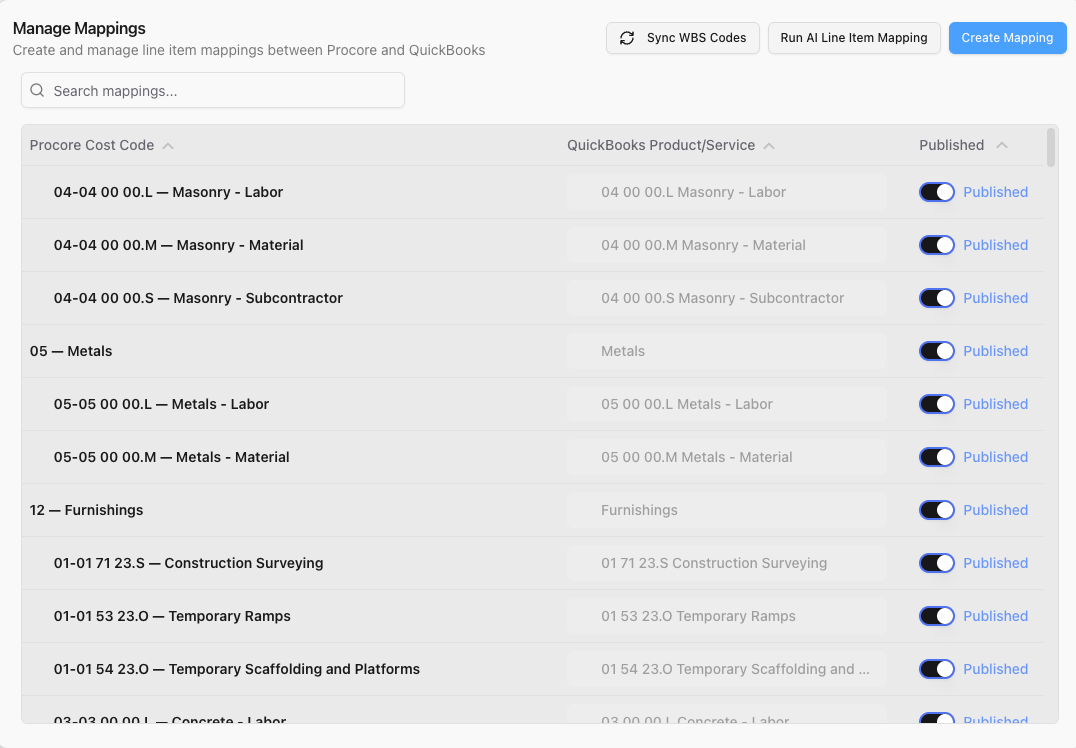
inBuild keeps four mapping types between Procore and QuickBooks. The same data model applies on both sides, with provider-specific targets in QuickBooks Online (QBO) and QuickBooks Desktop (QBD).
Vendors
Procore: Companies
QuickBooks Online: Vendors
QuickBooks Desktop: Vendors
Projects
Procore: Projects
QuickBooks Online: Customers and/or Projects
QuickBooks Desktop: Customers
Line items — cost code
Procore: WBS cost code
QuickBooks Online: Service Item or GL account
QuickBooks Desktop: Item or GL account
Line items — cost type
Procore: WBS cost type
QuickBooks Online: Service Item or GL account
QuickBooks Desktop: Item or GL account
Line-item settings
Each company picks a single granularity — cost code or cost type — and a single posting style (item-based or account-based). inBuild does not support mapping cost code and cost type together as a combined pair. One Procore segment maps to one QuickBooks target.
For QBO, projects can be mapped to a Customer, a Project, or both, depending on how your firm structures jobs in QuickBooks.
For QBD, projects always map to Customers.
How AI suggests mappings
When a customer connects Procore and QuickBooks for the first time, the entity lists are long and manual cross-referencing is the slow part of go-live. inBuild's AI takes the first pass.
For each mapping type, the workflow is the same:
1. Pull both sides. The latest Procore entities and the latest cached QuickBooks entities are fetched.
2. Pre-filter candidates. A fuzzy search narrows the QuickBooks list to the most plausible matches per Procore entity. This keeps the AI focused and costs predictable.
3. Ask the model. The AI returns one suggested QuickBooks match per Procore entity, plus a confidence score from 0 to 1. If it is not sure, it returns no match.
4. Save as drafts. Valid suggestions appear in the mapping table as draft rows, with the confidence score visible to the reviewer.
The AI is intentionally conservative. It is told to leave a mapping blank rather than guess. Matching thresholds are higher for vendors and projects than for line items. A missing mapping is easy to find and fix. A wrong-but-confident mapping is something you discover on a WIP report.
Where humans approve or override
Drafts do not govern sync. That is the most important part of how inBuild handles AI mapping.
- A bill cannot post to QuickBooks unless every mapping it depends on is published. Bills are marked ready, needs publishing, or unmapped — and sync only runs when everything is ready.
- Publishing is a human action. A reviewer opens the mapping table, sorts AI suggestions by confidence, and accepts, overrides, or leaves them unpublished.
- AI never overwrites a published mapping. If a controller has already locked in a vendor mapping, future AI runs will not change it.
- Override and publish is one step. When a reviewer disagrees with the AI's pick, they choose a different QuickBooks entity and publish in one action.
- Unpublishing sensitive mappings is admin-only. Vendor, account, customer, item, and project mappings can only be taken down by an admin.
- Missing mappings are surfaced before sync.When a bill is ready to post, inBuild shows exactly which entities are unmapped or still in draft — not a generic sync failed message.
We do not promise one-click, autonomous mapping. The publish gate means a human reviews before any money can move!
Why this matters
In construction AP, the cost of a wrong mapping is not an inbox to clean up. It is a posting error on a job-cost report and a conversation with a PM.
The goal of AI here is not to eliminate review. It is to make review fast: a confidence-sorted list of plausible candidates, validated every time, with a clear publish action and a hard gate before sync.
That is what inBuild's mapping does today, across vendors, projects, cost codes, and cost types. Not only for QuickBooks Online but QuickBooks Desktop as well!
If you want to see this in action request a walkthrough of inBuild's Procore and QuickBooks mapping review.