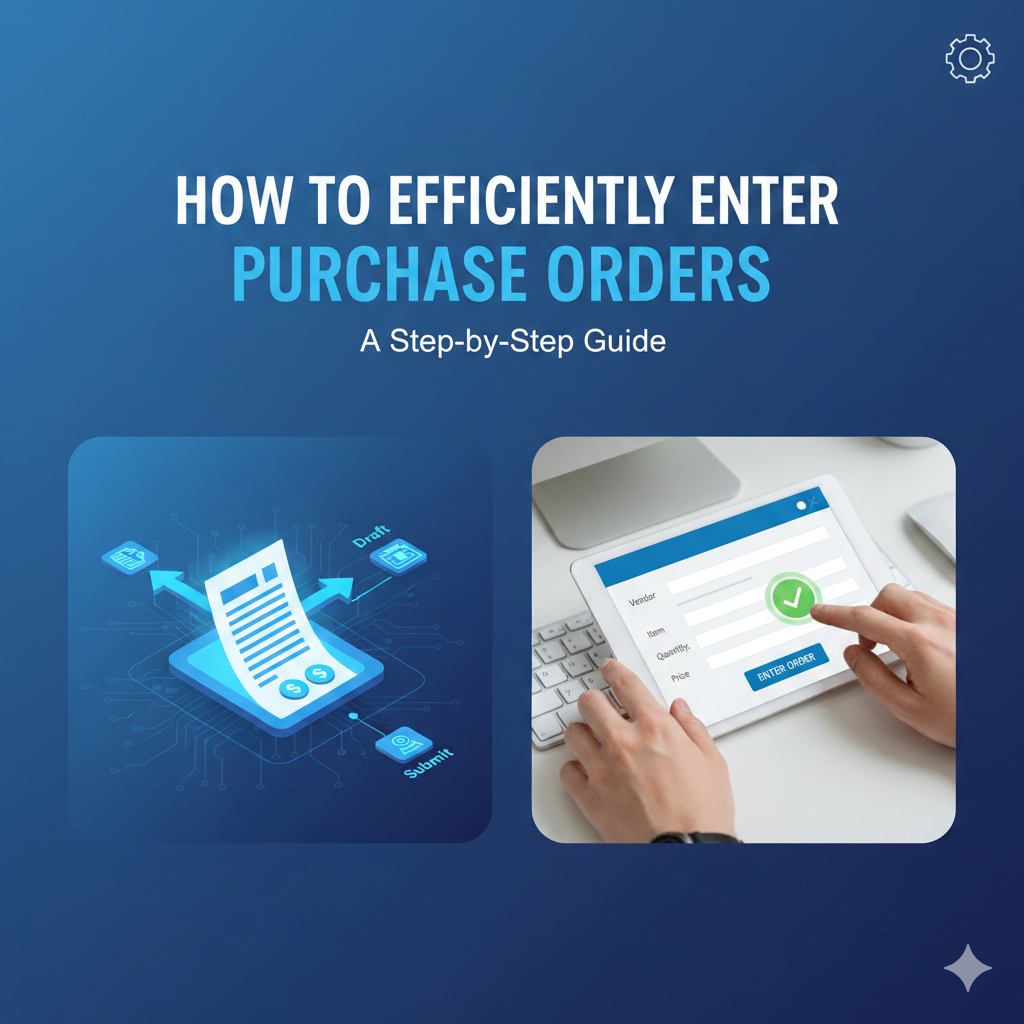
Why Purchase Orders Matter in Construction
In construction project management, a purchase order (PO) is more than just paperwork — it's a documented financial commitment that spells out the types, quantities, and agreed-upon prices for products or services between a buyer and seller. Getting POs entered correctly the first time in Procore saves your team hours of rework, keeps your budget accurate, and ensures your ERP data stays clean downstream.
Whether you're a project manager creating your first commitment or a seasoned admin processing dozens of POs a week, the tips below will help you streamline the process and avoid the most common pitfalls.
Step 1: Prepare Before You Click "Create"
Before you open Procore's Commitments tool, make sure you have the following information ready to go:
- Vendor details: Confirm the vendor or subcontractor exists in your Project Directory. If they don't, add them first — you won't be able to assign a Contract Company otherwise.
- Budget codes: Know which cost codes the PO should be tied to. If you need a new budget code, you can create one during PO entry, but it's faster to have them established ahead of time.
- Bill To and Ship To addresses: Procore auto-populates these fields from the most recently created PO, but double-check them — especially on projects with multiple delivery sites.
- Retainage percentage: Decide your default retainage rate upfront. Keep in mind that the rate set on the PO only affects the first invoice. Adjustments for subsequent invoices need to be handled separately.
Step 2: Create the Purchase Order
Navigate to your project's Commitments tool and click + Create → Purchase Order. From here, Procore will walk you through the General Information fields:
- Number (#): Procore assigns sequential PO numbers automatically (e.g., PO-01-001, PO-01-002). If your company uses a custom numbering convention, you can type over the default — just make sure each number is unique, especially if you sync with an ERP.
- Title: Use a clear, descriptive name. Something like "HVAC Equipment – Building A" is far more useful than "PO for John's Company" when you're searching through commitments months later.
- Contract Company: Select the vendor fulfilling the order from your Project Directory.
- Status: New POs default to Draft. Remember that Draft and Closed POs won't appear in your budget. Set the status to Approved when you're ready for the value to show in the Committed Cost column.
Step 3: Build Your Schedule of Values (SOV)
The SOV is where the real detail lives. Procore gives you two ways to enter line items:
- Manual entry: Add lines one at a time with budget code, description, quantity, unit of measure, and unit cost. Procore calculates the line total automatically.
- CSV import: For POs with many line items, download Procore's CSV template, fill it out in Excel, and upload it. This is a huge time saver on material-heavy orders.
A few tips for a clean SOV:
- Always assign a budget code to every line item. Unlinked line items create gaps in your budget reporting.
- Use consistent units of measure from Procore's master list to avoid confusion during invoicing.
- If your ERP doesn't support Lump Sum (LS) as a UOM, use the Override Subtotal option and enter only the subtotal amount.
Step 4: Review, Sign, and Distribute
Before you finalize the PO:
- Attach supporting documents: Upload pricing quotes, scope letters, or signed agreements directly to the PO. Having everything in one place makes audits painless.
- Use DocuSign integration: If your project has DocuSign enabled, you can collect e-signatures without leaving Procore. Change the status to "Out for Signature" before launching DocuSign for the cleanest workflow.
- Email the commitment: Hit "Save & Email" to send the PO directly to the vendor from within Procore.
Step 5: Keep It Clean Going Forward
An efficient PO process doesn't end at creation. Here are habits that keep your commitments organized over the life of a project:
- Update statuses promptly. Move POs from Draft to Approved (or Processing, Submitted, etc.) as they progress. Accurate statuses mean accurate budget views.
- Don't forget change orders. If scope changes, create a Potential Change Order from an Approved PO rather than editing line items directly. This preserves your audit trail.
- Set retainage correctly. If you need to adjust retainage after the first invoice, use Procore's retainage tools on each subsequent invoice rather than editing the PO default.
Bonus: Automate PO Workflows with inBuild
Even with a great process in place, manual PO entry and invoice matching still eat up hours every week. That's where inBuild comes in.
inBuild integrates directly with Procore to automate direct cost processing, invoice handling, and financial reporting. Instead of manually entering every payable document, inBuild pulls invoices from your connected email inbox, mobile app, and Procore into a single hub. Project managers review, code, and approve through customizable workflows — and everything syncs back to Procore and your ERP automatically.
The result? Less manual data entry, fewer errors, and more time focused on building. If you're looking to take your Procore financial workflows to the next level, learn more about inBuild + Procore.